
empty
You can access through this link.
Email: the one you used to enrol.
Password: in case you don’t remember your password, you can click on “¿Olvidó su contraseña? / Forgot your password?” to generate a new one.
To see the dates and times, please log in to your account and open the course.
- Choose a quiet place in your home to watch the sessions at ease.
- Check that your Internet connection is stable and powerful enough to view and participate in the seminar.
- Verify that your device’s operating system and browser are up to date.
- Print or write down the schedule of the live sessions, to avoid any misunderstanding.
- Try to log into your account in advance, to verify that you have access
- To do this training it is necessary to have a pc or mac, tablet or mobile phone with access to the internet. In addition to some note sheets to take notes.
- Have opened a free Zoom account with your personal data, the same you have given for the course, in order to join the webinar. It is 5.0 version that guarantees greater online security.
- Have downloaded the most recent version of Zoom.
REMEMBER TO DOWNLOAD THE MOST RECENT VERSION OF ZOOM onto your computer, otherwise you will not have access to THE SPANISH SIMULTANEOUS INTERPRETATION OPTION. This is version 5.0
You will need one of the following browsers:
For desktop:
– Chrome
– Firefox
– Safari
– Microsoft Edge
Mobile:
– iOS Safari: 11 and up
– Chrome
Note that we do not support Internet Explorer
At the end of the course, you will see an automatic message with a button to download your certificate.
To obtain the certificate, it is necessary that all the sessions are marked as finished.
Next to each session you will see a box that marks whether the session is complete or not.
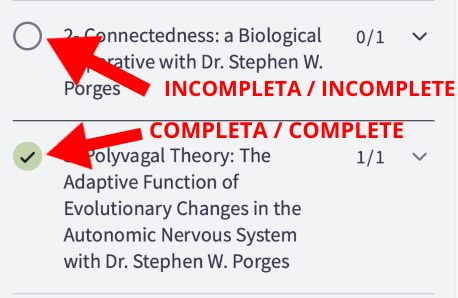
f any of your sessions is not marked as “complete” you can simply go to the session in question and click on the “complete and continue” button that you will see at the bottom of your screen.
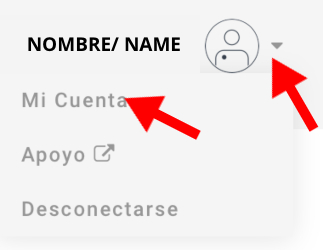
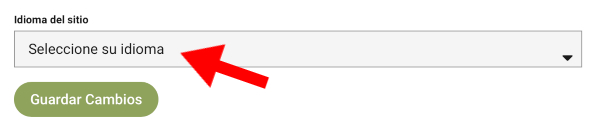
By default, the interface is in Spanish. You can change the language by going to your name (you will see it at the top right on the screen) > Mi cuenta > Idioma del sitio.
empty
- Go to zoom.us.
- Once you are on the Zoom home page, you can click on “sign up, it’s free”
- You will be asked to enter your date of birth and your email address.
- Then you will need confirm your email address and once this is complete you will be able to access it with your details.
If you already have a zoom account you can upgrade to version 5.0 by clicking here: https://zoom.us/download?zcid=1231
You can download it through this link
Login to your account through this link and go to the session you want to join.
You will be asked to fill out a registration form. When you have completed it, you will receive an email with the link to access the live session.
When you click on that link, a message will appear saying: “Do you want to allow this page to open “zoom.us”?
By allowing it, the application will automatically open and you will be in the live session.
You will see on the screen the CONFERENCE or HOST of the course.
And below you will see a menu like this: Either in Spanish or in English according to the preferences you have set when installing your Zoom account.
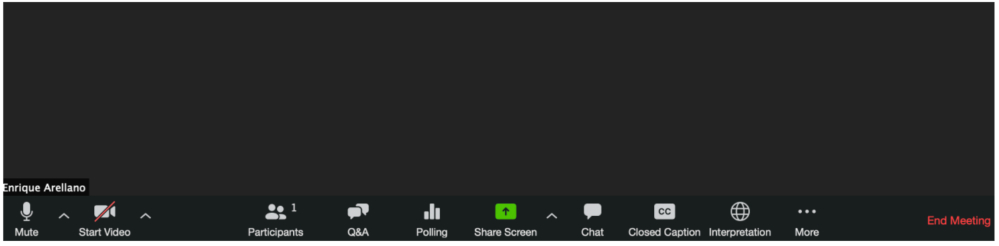
Please read these instructions carefully:
- When you enter the meeting, if you are not already muted, please do so as to not have any competing noise..
- Once you enter, you will need to decide your language (Spanish or English). You can do this by selection the button “interpretation” that is the 3rd button from the right and select the language you would like to listen to and then “mute original audio”. If you do not select one of the languages, the audio will not work for you.
- If you would like to ask a questions. The 4th button from the left labeled “Q&A” can be found. Click on that and you will have the ability to send a message privately or publicly.
- If you would like to raise your hand you can do so by clicking “more” above the word chat on the right hand side and selecting “raise hand” from the drop down menu.
- If you have any questions that are unrelated to the discussion at hand, such as trouble shooting. Direct message Danielle Haskin or Enrique Arellano Farias.
At the end of each live seminar, after approximately a week, we will upload the recording so that you can continue consulting the contents. There will be no transcripts for these sessions.